Why I Gave Up on Zapier AI Resume Automation Notion Integration After 6 Hours (50% Success)
Have you ever found it tedious to constantly modify your resume for each different company during your job search? Understanding this hassle, I took on the challenge of building an AI automation feature that automatically customizes your resume based on job postings. Let’s begin the process of integrating Zapier AI resume automation with Notion.
[Quick Summary]
- Project: Zapier AI Resume Automation (Notion-Gemini-Google Docs Integration)
- Technology Stack: Zapier (Middleware), Notion (Database), Google AI Studio (Gemini 1.5), Google Docs
- Core Logic: When the Notion job tracker status changes to "Applying," the AI analyzes the job posting to generate a customized CV and automatically uploads it.
- Technical bottlenecks: 1. Configuration errors due to AI misidentifying the Zapier UI version. 2. Instability in maintaining third-party app (Google Drive, Notion) permission delegation and integration. 3. Complexity in data mapping when specifying prompt details.
- Insight: AI automation is fundamentally about 'delegating authority' to systems and 'designing logic capabilities,' going beyond mere tool usage.
Zapier AI Resume Automation
To land a data-related job, I frequently visited the New Zealand job site Seek. Among all the tasks, the one that took up the most time was rewriting my resume (CV) to tailor it to each specific company.
Because every company has different goals and requirements for job seekers. Around the time I was thinking this, I happened to watch a video by my favorite YouTuber, Lillian, about building AI automation features.
1. Three Categories of AI
It seems we’ve reached a point where AI is inseparable from our daily lives. This trend is only likely to intensify. Lillian viewed AI as falling into three broad categories.
Level 1. Large Language Models (LLMs) like ChatGPT
- Enter a question to generate a text-based answer.
Level 2. Building AI Automation
- Enter a rule, and it will automatically perform multiple tasks.
Level 3. AI Agent Stage
- Once a goal is set, the AI infers and thinks while executing all necessary tasks to achieve that goal.
Today I challenged myself to build an AI automation feature that will make my life easier.
2. Zapier AI Resume Automation Feature
I wanted AI to read the company job posting and write my resume (CV) tailored to it. For this, I chose Zapier, the pioneer of workflow automation.
Simply put, workflow automation is about creating pathways for data to flow between thousands of software tools (like Notion, Google Gmail, Google Sheets, etc.)—even if you don’t know how to code. It’s a company that acts like digital glue, connecting apps together.
3. My Zapier AI Resume Automation
To build AI automation features, it’s best to first recognize what tasks you repeatedly perform. I recommend writing down on paper how those tasks proceed step by step.
As I am currently job hunting, I wanted to organize data-related job listings on the Seek website and customize my resume according to the type of talent companies are seeking.
Organizing job listings by creating tables in Notion is easy, but constantly updating my resume was such a hassle. So I decided to break down the process.
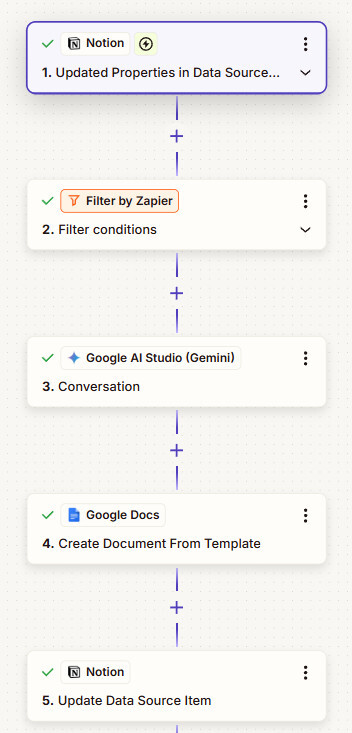
- Notion: Enter job information into the pre-made Notion format
- Filter: When the Status changes from Hiring to Applying, that triggers the next task to start (the initial job Status is Hiring; the one I applied to is Applying).
- Google AI Studio (Gemini): Gemini AI references the CV template within Google Drive while reading the job posting URL entered in Notion, compiling the company's information and job requirements to create a new resume.
- Google Docs: Upload the newly created resume as a Google Docs file to Google Drive.
- Notion: Link the new resume in Google Drive to the Notion table as a URL.
I enter the job’s Status as “Hiring” in the Notion table and input the job posting URL page. Of course, it’s best to fill in the rest of the information as well, but these two pieces of information are absolutely essential.
Once I input that information, the AI automatically creates a resume tailored to the company and attaches it as a Google Docs file (URL) to the Custom CV column in Notion. Then, I can simply keep modifying this resume and apply directly from the CV upload section on the Seek site.
1) Creating a Notion Job Tracking Spreadsheet

This is the task of creating a table in Notion to organize information about job listings that catch my interest on job websites.
Job title, company, status, Date Applied, Email, Link (Job Posting Page), AI CV URL (Google Docs) Set these as the column names in the table.
Below that, you can enter the details of each job that interests you. When I first started following this process, I began with skepticism, wondering what convenience this task would actually bring me. Because up until now, I had to handle every task myself.
2) Creating Each Step for Zapier AI Resume Automation
I created five separate steps. When these are connected together, it’s called one Zap. Each step can be edited as shown on the right.
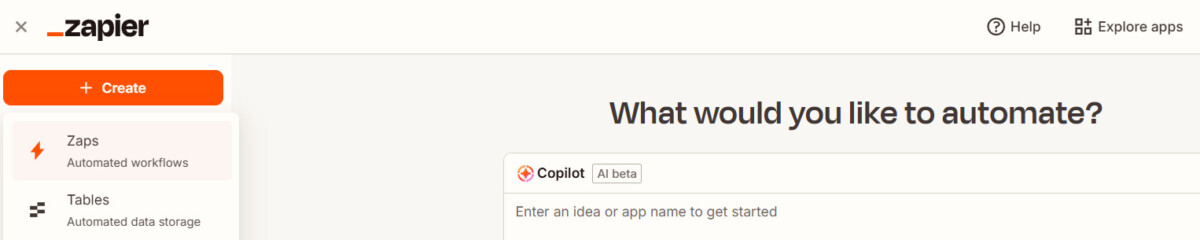
To start creating a Zap, click Create on the main screen and select Zaps. For the step where you add content, please refer to the image below.
For example, since we use Notion, we added Notion to the Apps section for the first step.

A trigger event activates when any update occurs to a database source item created within Notion. Specifically, I selected “Updated Properties in Data Source Item.”
Enter your personal Notion account for the Account field. You must complete each step in this manner. Additionally, each step includes a section where you can test whether what you just created is functioning properly. This should be done before publishing.
If you look at my Notion job tracking spreadsheet, you’ll see I’ve written something in the first row. You don’t need to fill in everything—just roughly jot down the Job title, Status, and the job posting page URL to test it.
In the second step, I used a filter because the Notion Status column was set to “Hiring” when filling in information. I also provided an option to select “Applying” for when I applied to the company.
If I change my Status from Hiring to Applying, this will trigger Gemini to review the company’s job postings and create a resume tailored to them.
And I chose Gemini because while ChatGPT requires a paid subscription, which could incur additional costs for this task, I already have a paid Gemini subscription. Therefore, I selected Gemini as the AI.
I apologize for not being able to explain every step in detail, but please refer to the overview provided above for the main framework of each step.
Thoughts on Automating Resumes with Zapier AI
I’ll now share my subjective thoughts on using Zapier AI for resume automation.
1) Zapier Interface
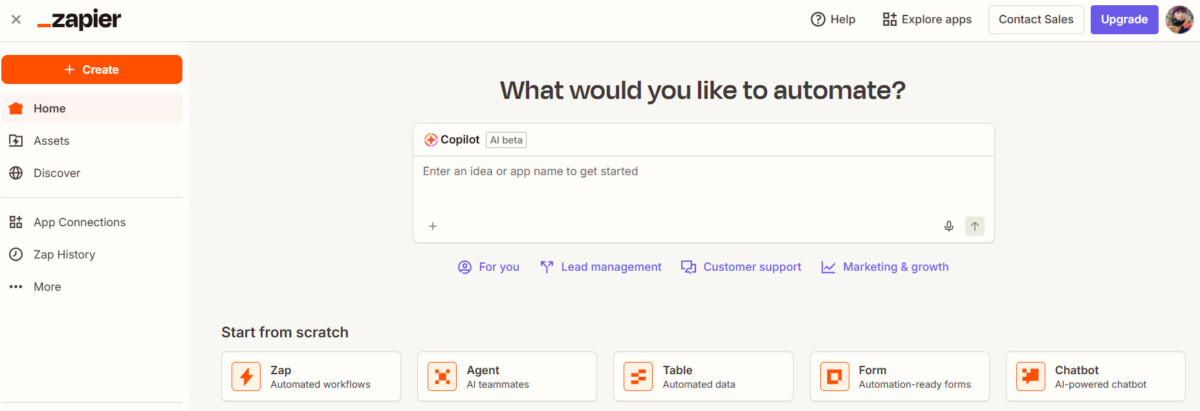
The task may take longer than expected. I sometimes left the task screen, and each time I tried to find my Zap screen again, it wasn’t easy to locate.
Most platforms have their menus structured so you can see your completed tasks in the left-hand menu. With Zapier, however, you could find them by scrolling down the main screen to the section labeled “Recently updated.”

2) Entering the challenging Step content
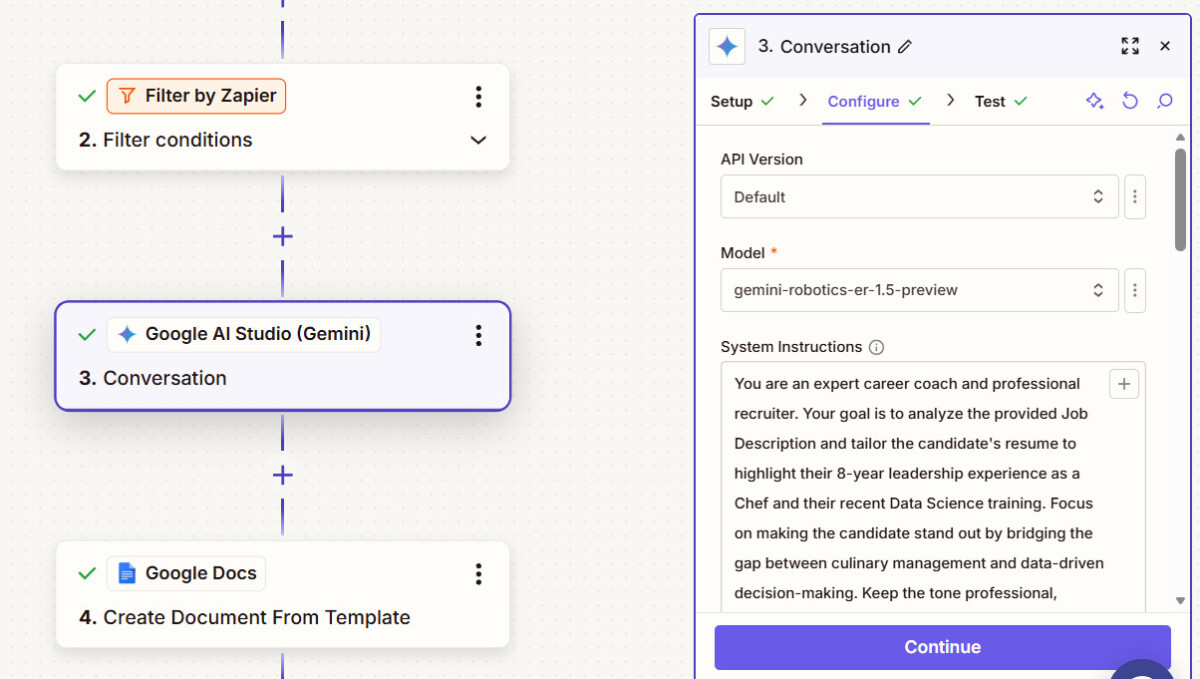
For each step, we had to include triggers that allow the AI to move automatically and reference points to consider, but this part was not easy.
Since this was my first time using Zapier, I started this task with the help of AI (Gemini). This involved taking screenshots, understanding what each piece of content meant, and figuring out what content to write.
This is the part that took me the most time. No matter how many screenshots I showed the AI, the explanations it provided either covered aspects I couldn’t find or were based on previous versions.
And when I tried using AI to fill in the sections required for Zapier’s steps, I found that if the AI entered inaccurate information, I had to put in considerable effort to correct those parts.
3) AI automation means delegating my authority to AI.
While working on this Zapier AI resume automation project, the most significant realization I had was that building AI automation capabilities ultimately means delegating our authority to AI so that it can handle the task.
The AI was granted rights such as access to Google Drive and the right to use AI Gemini. However, when changes or modifications occurred, the AI failed to recognize them, requiring re-authorization. This process was also not smooth.
Conclusion
This time, we discussed Zapier AI resume automation. The quality of your resume seems to depend on how well you plan your steps or templates.
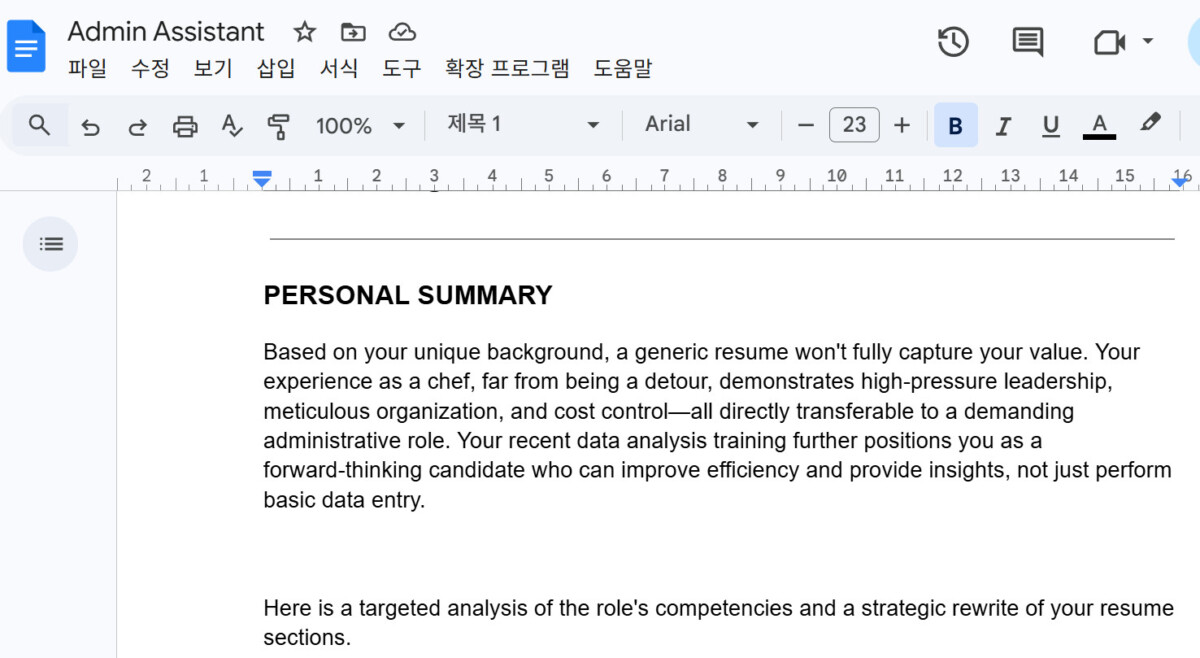
The photo above shows my revised resume, created by AI to align with the job posting of the company I wish to support, thanks to the trigger working well.
Building AI automation features—while it would be great if AI handled everything—doesn’t seem to mean it will build the entire system for you. You’ll likely need to understand platforms like Zapier to some extent and experiment frequently to get the hang of it.
When the second step trigger activates and the process continues, the desired result (the customized resume file) will ultimately appear in Notion. I’ve also experienced times when this worked and times when it didn’t.
From my experience, it seems to take about 15 minutes for the trigger to activate. Especially when changing from Hiring to Applying (the trigger), don’t click too quickly; try doing it slowly once.
If you have granted the AI permission to use Google Drive and Gemini, yet it continues to display “No permission” during the process, deleting (clearing) the content created at that step and reconnecting may resolve the issue.