Receive Samsung Electronics News Summaries via Email with Gemini AI Automation and Google Anti-Gravity (A Story of Failure and Success)
I attempted to automate Samsung Electronics news summaries via email using Google AntiGravity but failed. Afterward, I tried again with Gemini AI automation through GitHub. This time, I succeeded and have been receiving automated emails every morning ever since. I’ll now share the entire process.
Gemini AI Automation Starting with Google Anti-Gravity: Receive Samsung Electronics News Summary Emails
Today, I’ll show you how to use Google Anti-Gravity to automatically summarize Samsung Electronics’ latest news using Gemini AI and send it out automatically—something many of you have been curious about.
To automate the process, I used the GitHub platform. You can simply think of it as a space where developers store and share data and source code.
I believe I’ve found the most efficient automation path from a beginner’s perspective.
As far as I know, automation is possible because GitHub is open 24/7. If you put a task instruction there, GitHub takes it to an arbitrary virtual machine and carries out the task we instructed (send a summary of the morning news via email every day at 8 AM).
I asked Google Antigravity Gemini AI to automatically send emails at my desired times even when my laptop is off, and it recommended GitHub.
Gemini AI Automation: A Hands-On Course
Before beginning the explanation, I will briefly outline the topic to be discussed below.
|
Stage |
Key Tasks |
Utilization Tools |
|
Design |
News Collection and Summary Prompt Creation |
Google Antigravity (Gemini) |
|
Save |
Upload code and work instructions |
GitHub Repository |
|
Execute |
Automatic scheduling every morning at 8 a.m. |
GitHub Actions (yml configuration) |
|
Receipt |
Check the Samsung Electronics News Summary |
Gmail (App Password Integration) |
Prompt used in Google Anti-Gravity
- Samsung Electronics: 5 Latest News Summaries (Including Stock Price)
- Send it to my email every morning at 8 o'clock.
When you enter and run this prompt, it will create the following three files. The .txt file may be created later. Regardless, the AI will generate the files on its own. If they don’t exist, it will recreate them and tell you what to do next.
- daily_news.yml: A task instruction file for execution on GitHub (specifying times, actions to perform, etc.)
- daily_samsung_news.py: Design code for scraping the latest news and generating a summary
- requirements.txt: Install necessary components for Python code operation
1) Create a GitHub Repository and Set Up the AI Automation Environment

First, I’ll assume you‘ve signed up for GitHub and created an account. You need to create a new repository.
What that means is, you can just think of it as a single project. If you see the green New button above, just click it.
In my case, the Samsung Electronics news summary automatically sent via email would be that project.

To create a new repository, enter any name you like, set the visibility to Private, and then click Create repository.
Didn’t you just say you wanted to share your source code on GitHub? If you’d rather not and want to keep it private, just set it to Private. (Recommended)
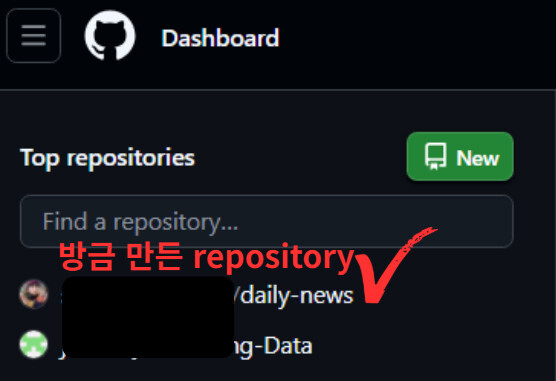
You should now see the repository you just created on the dashboard. The example repository, daily-news, is visible. Click on it.
2) Setting up GitHub Secrets for Security (SENDER_EMAIL, App Password)
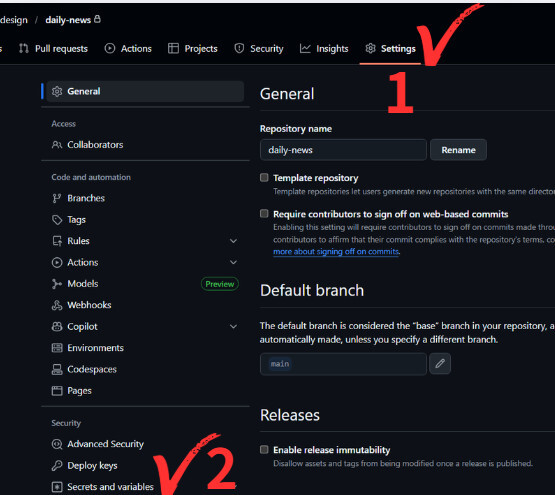
I’m not personally creating and sending summaries of Samsung Electronics’ latest news; I’m placing work instructions on GitHub and requesting that they be carried out. However, Google doesn’t just allow anyone to send emails freely.
Hey, who are you to send emails here? Google might think. So, think of it as verifying the sender (email address) and entering an app password to prove you’re the real owner.
As shown in the image above, click Settings and then Secrets and variables in sequence. After clicking Secrets and variables, you’ll see 2-3 menu options; please select Action from there.

Select a new repository secret.

You will create two entries. First, enter SENDER_EMAIL in the name field. Then, enter your own email address where you wish to receive automated emails in the Secret field. After completing both entries, select Add secret.
You should now see the list you just created on the screen. Then select New repository secret again.
This time, enter SENDER_PASSWORD in the name field and your 16-digit Google app password (usually alphabetic, e.g., abcd efgh ijkl mnop) in the secret field. Then select Add Secret, and you’re done. You should now see both of the lists you just created.
If you’re unsure what to use for your app password, I highly recommend reading my previous post.
If you’d rather not read a long post, you can follow the steps below. Still, I recommend reading it to understand the overall context.

3) Set up to execute the work instructions
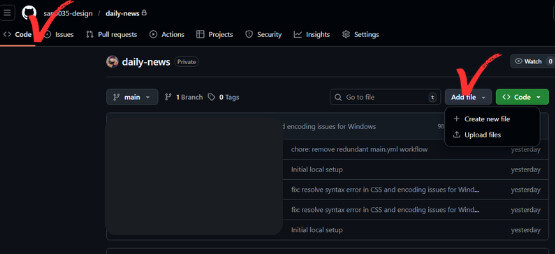
Now, simply go to the Code tab and upload the files (yml, py, txt) generated by Gemini AI as shown above.
- daily_news.yml: A task instruction file for execution on GitHub (specifying times, actions to perform, etc.)
- daily_samsung_news.py: Design code for scraping the latest news and generating a summary
- requirements.txt: Install necessary components for Python code operation
GitHub needs to see the uploaded files to actually work on my behalf. Remember? The files created by Gemini AI on Google AntiGravity.
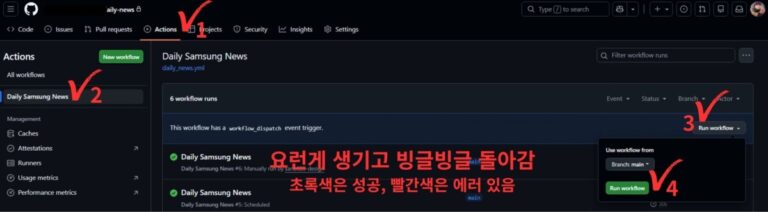
To set up the task (send a summary of the latest 5 Samsung Electronics news items to my email every morning at 8 a.m.), go to the Action tab in the top menu.
Then select Daily Samsung News on the left. At first, you won’t see anything. Press the Run workflow button on the right, then select Run workflow again.
It’ll take a moment. The Daily Samsung News list will appear, and the icon will start spinning. If successful, you’ll see a green checkmark; if there’s an error, a red X will appear.
The green indicator means the task has been executed. If you check your email shortly, you’ll see that the email has arrived.
If you haven’t received the email even though it’s green and some time has passed, we recommend checking your spam folder.
Google Antigravity Gemini AI Automation Course: Errors and Solutions
Even if you follow the method I’ve described above, it might not work. I certainly didn’t succeed in completing the entire process in one go either.
If you’re not sure what I’m talking about, just throw out a prompt and work through it step by step with the AI.
I highly recommend utilizing ScreenShop. We’re unfamiliar with Google Anti-Gravity, Gemini AI, and GitHub screenshots. I won’t be able to explain them well.
At that time, I did exactly what you told me to do, AI, and this is the result I got. I’ll show you the screenshot and ask what to do next. Then, the AI will guide me step by step.
In my case, there was an issue I created during the process of issuing work instructions. When I clicked Run workflow, the green indicator wouldn’t appear, and a red X kept showing up instead.
So I clicked on it to go inside, and I saw something called Build. When I clicked on that again, it showed me where the error occurred in the process, as shown below.

Currently, there are no error indicators, but if any issues arise during the process, error indicators will appear. Take a screenshot of those and ask Gemini AI about them. It will provide solutions, and you can proceed with the fixes accordingly.
Conclusion
Today, we discussed how to automatically receive email summaries of the latest Samsung Electronics news using Gemini AI automation.
Those who have never used Google Antigravity or GitHub might find it a bit challenging.
But I haven’t been using either platform for very long, and I still don’t know much about them. In my case, I think I kept asking questions.
Going through these processes, I feel like I’m gradually learning. I firmly believe that what I’ve learned this time will help me understand the entire process next time.