How to Use Google Anti-Gravity: Get a Daily Morning Email with an Automatic Summary of Samsung Electronics News
Leave repetitive information gathering to AI agents. I receive an automated email every morning summarizing five Samsung Electronics news articles using Google Antigravity. Instead of requesting a summary from Gemini daily, this single setup automatically sends me the Samsung news summary email.
Why is Google Anti-Gravity’s utilization method ‘true’ automation?

I have been a shareholder of Samsung Electronics for a long time. As you all know, Samsung Electronics’ stock price has been skyrocketing lately. Since one must be wary when things are going too well, I’ve been reading Samsung Electronics news even more carefully these days.
Every day, as soon as I turn on my laptop, I ask Gemini AI to summarize and show me five news articles related to Samsung Electronics, and that’s how I’ve been acquiring information.
But honestly, asking every single day gets pretty annoying.
This is the core topic I’ll cover today: AI agent automation and how to use Google AntiGravity. Specifically, it’s about how to automatically send and receive Samsung Electronics news summaries via email using Google AntiGravity.
You might think, “How much time could I possibly spend asking Gemini every day?” But when those days add up, it becomes a significant amount of time. And the core point of today’s post is that we can use that time differently with Google Antigravity.
How to Use Google Anti-Gravity: Automatically Send a Daily Morning Summary Email of Samsung Electronics News
Before proceeding with the above content, if you’d like to learn how to install Google AntiGravity and the process for creating a simple blog landing page, be sure to read the post below. Doing so will greatly help you understand the content here.
Samsung Electronics News Summary Email Auto-Sending Prompt
From here on, I will explain each prompt I executed and the process step by step. I don’t think anyone will follow my steps exactly. I recommend you understand this process and execute what you want to achieve.
Starting January 6th, send me a daily summary of the top 5 key Samsung Electronics news items (including stock prices) to my email (enter your email address).
This was the beginning.
Once you set up this automation, the fact that I could receive the latest Samsung Electronics news—without having to ask Gemini AI or search separately on a search engine—was a whole new world for me.

With just one prompt, I was able to obtain a file summarizing five news items related to Samsung Electronics on January 6th. However, I wanted to receive that content automatically via email every day. That’s exactly what this ‘Daily Automatic Delivery Setup Guide’ is about.
First, I installed pip install -r requirements.txt as instructed.
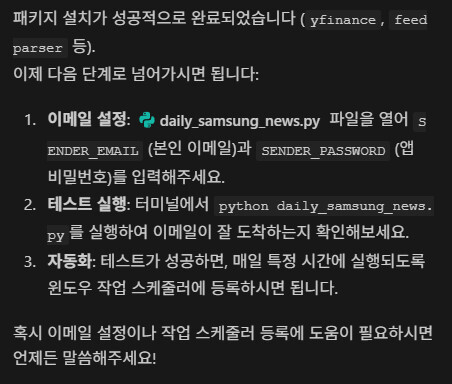
The daily_samsung_news.py file is located in the folder created in the previous post. Open that file, find the sections labeled sender_email and sender_password within the code, and enter your own email address and password as shown below.
The code below is located on lines 12–13 in the Python file above. Please modify it as follows.
|
Category |
Revised section |
Example of Revision |
|
SENDER_EMAIL |
your_email@gmail.com |
apple@gmail.com |
|
SENDER_PASSWORD |
your_app_password |
ABCD EFG HIJK LMNO |

Unaware of this, I entered my Google account email and password in the email above, then tried again. The response I received is as follows.
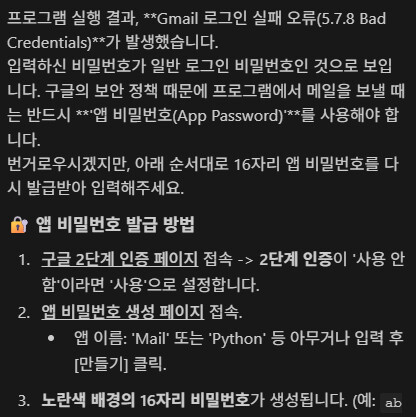
It turned out I needed to enter the app password (example: abcd edfg hijk lmno). To generate it, simply follow the instructions provided above.
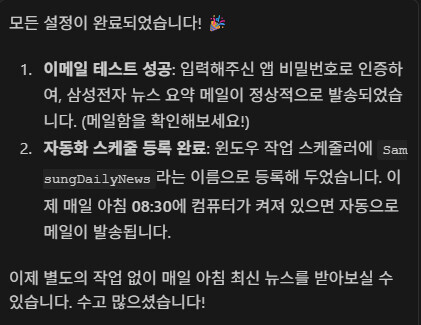
I went back to the password entry field in the file I opened earlier, entered the app password, saved it, and then ran the program.
I didn’t intend for this to happen, but apparently, if the computer is turned on at 8:30 AM every morning, it automatically sends the email. At first, I just thought, “Can’t it just send it automatically when the time comes, regardless of whether the computer is on or off?”
However, I learned why Google AntiGravity responded that way while discussing the method via GitHub. For starters, the method above is set up to work whenever I turn on my computer.
Did Google Anti-Gravity send a summary of the next day’s news?
With a fluttering heart, I turned on my computer the next day. The automated email hadn’t arrived. Thinking it might be a bit late, I left it on and waited. It still didn’t come. So I went back to the place where I’d given the order yesterday. When I told them the email hadn’t arrived, they finally sent it then.
But then I thought, no, this isn’t automatic. In the end, I double-checked all the commands I had issued and gave a new command: regardless of whether the computer was turned on, it must automatically send the email at 8:30 AM sharp.
Then, since it was difficult using the existing method, I showed them how to do it via GitHub and helped them set it up.
And I’m waiting for tomorrow. But this time, it seems it will come. I’ll update the details in the next post.
Conclusion
Today, I posted about how to use Google Anti-Gravity to automatically receive a summary email of Samsung Electronics news every morning.
Those who’ve read this far might be thinking, “So what? That’s why it failed.” For me, working with Google AntiGravity for the first time became an opportunity to rethink automation.
Of course, it’s not fully automated since there’s still the trigger of needing to turn on the computer. Yet, I believe the greater significance lay in the process of pursuing that full automation—discussing the principles behind how it becomes automated and learning step by step.
So in the next post, I’ll share whether full automation succeeded using GitHub and what the process was like, so please be sure to read the next post.
Next article
24-Hour Full Automation Using GitHub 2) How Emails Arrive Without Turning on Your Computer