Step-by-Step Best Guide: From Creating Your First YouTube Channel to Setting It Up
If you’re eager to start a YouTube channel but unsure where to begin, this post is for you. For those who know nothing about YouTube, I’ll guide you step by step through setting up your channel from scratch. Let’s get started with your YouTube channel setup.
Step-by-Step Guide to Setting Up Your First YouTube Channel
Add YouTube channel
Where on earth should I start? Even though I’ve created a few YouTube channels myself, I haven’t made one in a while, and when I need to make one, I hesitate and stall.
The first step in setting up a beginner YouTube channel is adding a channel. I’ll show you where to add that channel.

Since I’ve already created a YouTube channel, my logo appears like that, but normally it shows up as a blank profile screen.

When you add a channel, you’ll see a screen like the one above. Please select + Create Channel. I also have many channels that I’ve only set up for practice and don’t actively manage.

The photo above will be the YouTube channel logo section. You can fill it in later, so I’ll leave it blank for now.
I believe choosing a YouTube channel name is crucial when starting a new channel. Since I already had a blog title, I applied that directly as my YouTube channel name.
One recommended approach is to inform ChatGPT about your YouTube channel’s theme and the types of content you plan to post frequently, then receive examples from it and select your preferred option from those.
Actually, my blog New Zealand Life Handbook was created that way too. Once you complete this task, your own YouTube channel will be created.
It’s best to keep your YouTube channel URL simple and concise in English so visitors can easily type it in and access your channel. Since your audience isn’t limited to domestic viewers, we recommend writing it in English.
YouTube channel logo and channel art (banner image)
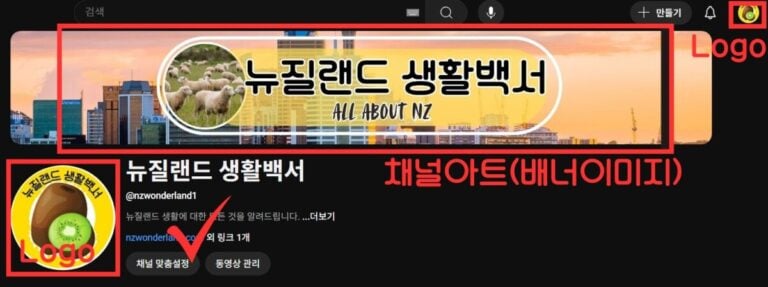
After setting up your beginner YouTube channel, the next step is to create your logo and channel art. Without these, people won’t know what kind of channel it is, and it just feels a bit empty.
I created the logo and channel art using the Canva design platform. For reference, when uploading to your YouTube channel, click the “Customize Channel” button at the bottom of the image above.
For reference, unlike logos, the size of channel art displayed to visitors varies slightly depending on the device used to watch YouTube.
Since many people primarily watch YouTube on mobile devices, be sure to read the post below when creating your channel art.
YouTube channel description

The final step in setting up a beginner YouTube channel is adding a description. When you enter Channel Customization, you’ll see the screen above under your logo and channel art.
In the description, it is recommended to include a brief explanation of your YouTube channel and list relevant keywords. Additionally, in the links section, please be sure to include any related social media accounts (such as your blog or Instagram) if you have them.
While watching YouTube, viewers may be directed to your blog or Instagram, which is why I believe this aspect is crucial. We must strive to keep valuable traffic engaged with our content for as long as possible.
After completing this section, click the Settings menu in the left menu shown in the image above to proceed to the section below.
Settings – Channel – Basic Information

Please include your country of residence in the channel’s basic information section and list a few core keywords for your YouTube channel.
Settings-Channel-Advanced Settings

In the channel’s advanced settings, if your YouTube channel is not intended for children, please ensure it is not set as a children’s channel.
If you’ve done this much, you can consider yourself almost done with the step-by-step guide from setting up a beginner YouTube channel to configuration.
From now on, the most important thing is to post content frequently and regularly. YouTube is the most powerful tool I have to convey my message to others. Since you’ve already created a YouTube channel, I hope you’ll upload plenty of content worthy of it.
I also plan to regularly upload videos related to life in New Zealand and studying English.
For reference, if you’re unsure how to write the video description when uploading, please refer to the post below. It also explains how to create a channel subscribe button, so read it carefully and follow along.
Conclusion
Today we discussed a step-by-step guide for beginners on setting up a YouTube channel from start to finish. Let’s summarize that again in three steps.
Now that I’ve explained it so clearly and distinctly, doesn’t it make perfect sense? I hope this clears up some of the uncertainty for those of you who’ve been wanting to start a YouTube channel. I sincerely hope that by launching your YouTube channel, you’ll achieve everything you set out to accomplish.