How to Receive Emails and Surveys Simultaneously Using Canva Forms
Canva, the world-renowned design platform, has returned with new updates for 2025. This time, we’ll show you how to collect both emails and surveys simultaneously using the newly created Canva Forms. Since it allows you to easily gather not only email addresses but also customer feedback, many of you will likely find this feature useful.
Collecting email addresses is crucial in product sales
You’ve probably seen phrases like “Enter your email address when you visit our website to receive a free e-book or free information” at least once.
Well, it’s just an email address—it doesn’t cost anything, right? You’ve probably entered your email address without a second thought many times, just to get free e-books or similar offers.
Why? Why is collecting email addresses important from their perspective? Because this is precisely what becomes valuable customer data.
Selling products to a large number of anonymous people is not easy. This is because everyone’s interests differ.
However, selling a product to people who are already interested in it is relatively easy. This is because they are more likely to purchase it since they are already interested in the product.
By filtering out uninterested individuals and sending emails with information about quality products and purchase links to those who are genuinely interested, the likelihood of achieving purchase conversions is bound to be high.
Receive emails and surveys simultaneously with Canva Forms
I too once considered collecting email addresses. I often wondered if I could collect email addresses by offering something like a free e-book on my blog.
However, this time we’ve updated the Canva Form to simultaneously receive emails and surveys.
Collecting Email Addresses with Canva Forms
First, let’s try collecting email addresses using Canva forms. Go to the Canva website, select a photo you like, and we’ll start from there.
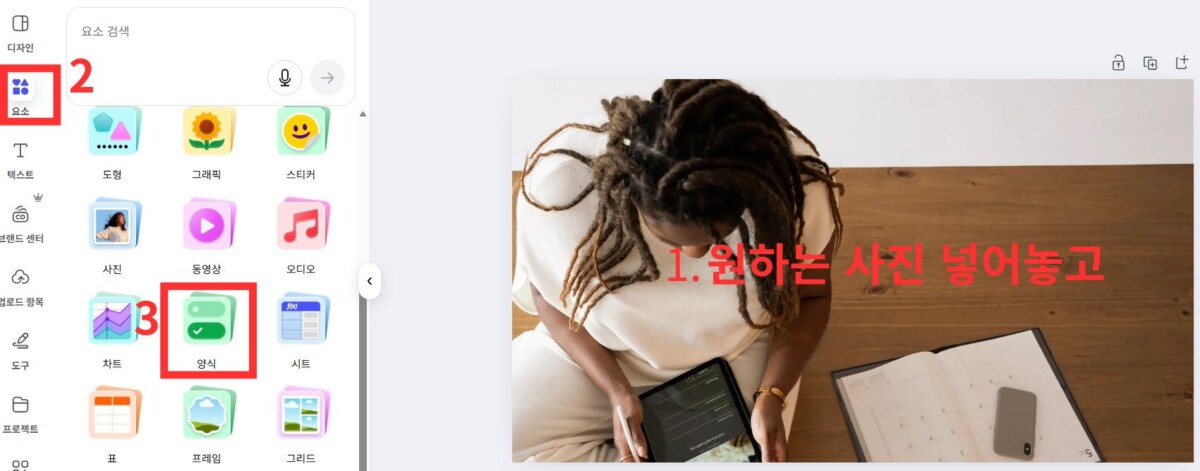
Canva Forms can be easily found by going to the Elements menu. Under Forms, you’ll see various types available. Some collect email addresses, while others allow users to rate with stars.
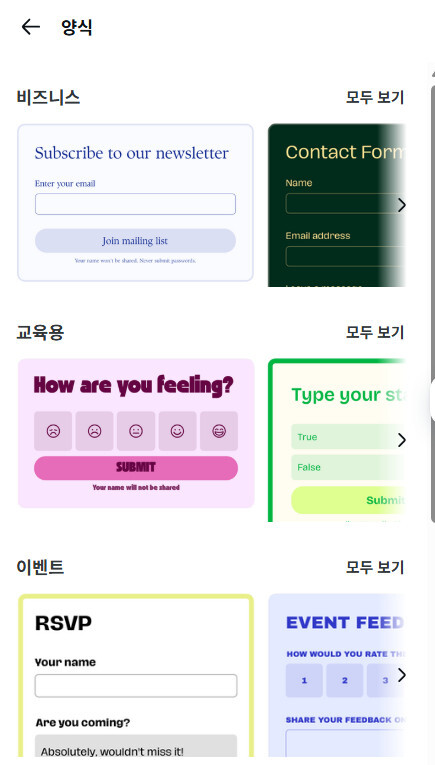
Since there are various formats available, please be sure to browse through the options to find the template you prefer. Since we need an email address, we’ll go with the first one listed.
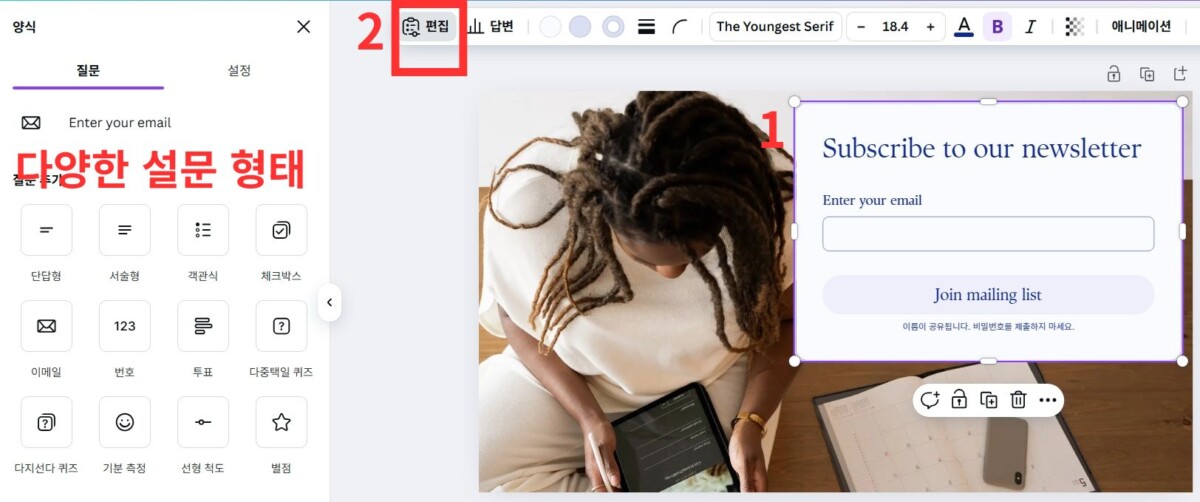
Select a Canva Form email template and adjust the position over the photo. To customize the default template, you can change the color next to ‘Reply’ in the top menu.
Click the Edit menu to access various survey types you can add. These include short answer, essay, multiple choice, checkbox, email, number, poll, multiple-choice quiz, multiple-answer quiz, mood measurement, linear scale, and star rating.
For your reference, please note that you can modify elements such as headlines and button names in the default template via the settings next to the question in the left menu. Feel free to customize them as you like.
First, let’s start with the most basic step: collecting email addresses.
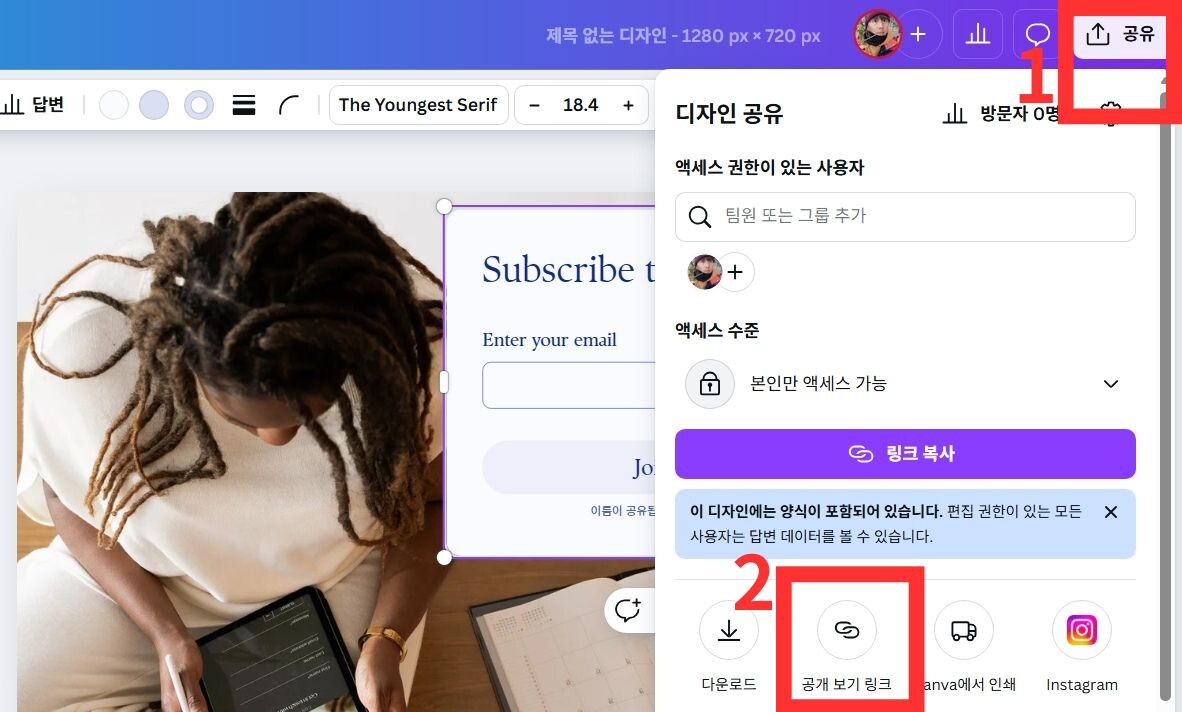
If you’re satisfied with the template editing, select the ‘Share’ button in the top-right menu, then choose ‘Public View Link’. After that, click ‘Create Public View Link’.

Then copy the link and paste it into your blog or wherever you need it. I used the embed feature on my WordPress blog to paste the copied link as shown below.
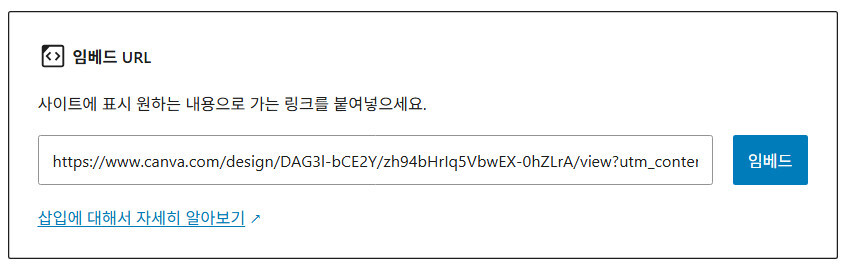
This is how the email address collection image link was completed using Canva forms. If you enjoyed this newsletter and would like to continue receiving it, simply enter your email address here. That way, the newsletter sender can keep sending you updates.
Adding a Survey to a Canva Form Email

Let’s try adding a star rating survey to an existing email form. Go to the ‘Edit’ menu at the top and select ‘Star Rating’.
When you ask a question that serves as the basis for star ratings, a star rating survey is immediately added and displayed.
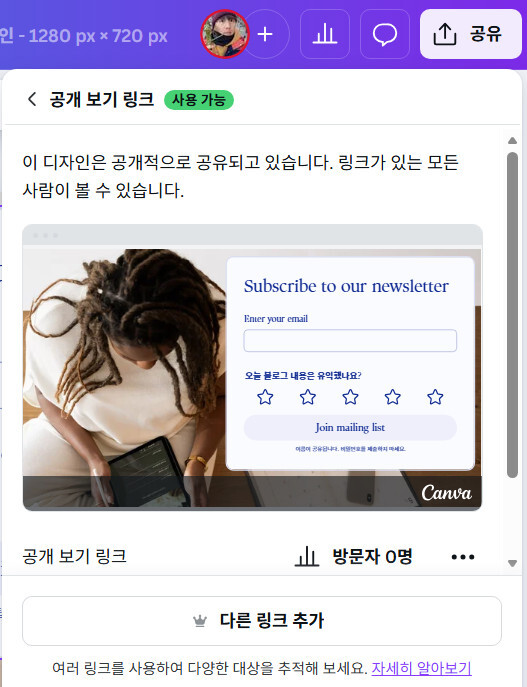
The process is the same as collecting email addresses initially. Since there are now two fields (email and star rating), click the “Add Another Link” button.
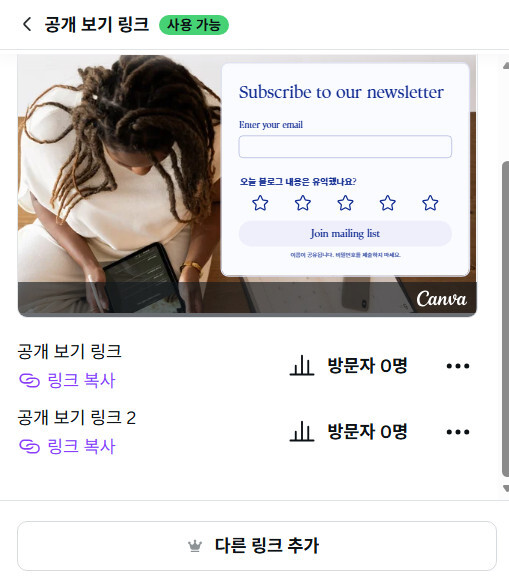
A Public View Link and a Public View Link 2 have been generated. Click ‘Copy Link’ for ‘Public View Link 2’ and paste it into your blog.

Now you will see two Canva form templates. You can customize these various survey formats to your liking.
Create and Run Emails and Surveys with Canva Forms
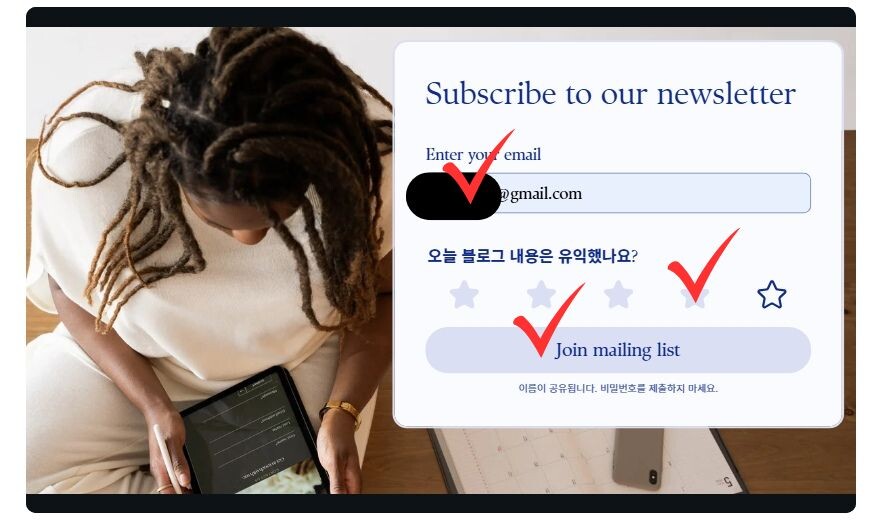
I actually tried it out, entered my email address, gave it a 4-star rating, and clicked the Join mailing list button.
How to Check Canva Form Email and Survey Responses

When you view the responses, the respondent’s name, email address, and the time they answered will be displayed. We also conducted a star rating survey, right? If you want to check that as well, click ‘Open Sheet Link’ and you can view it as shown below.
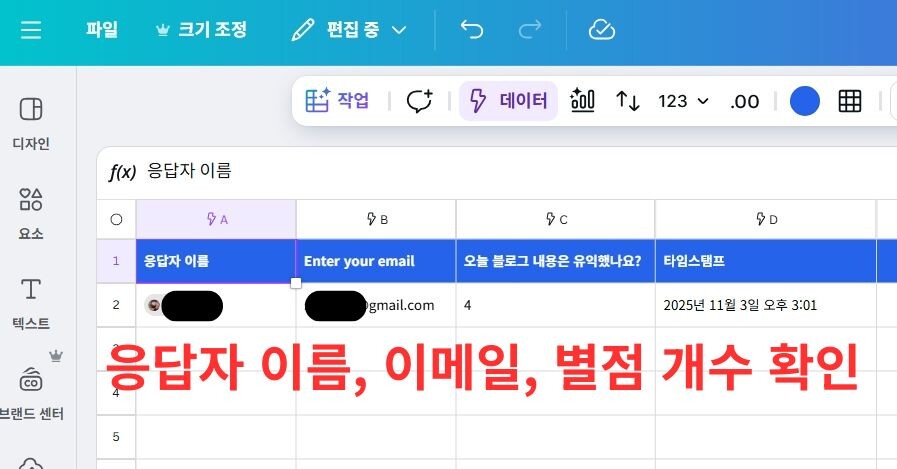
Then you can check the responses on the Canva sheet. Since I was the only one using this Canva form email and survey today, only my information appears, but if multiple people used it, you’d be able to see everyone’s data together, right?
Conclusion
Today, I learned how to simultaneously send emails and conduct surveys using Canva Forms.
Last year, Canva surprised me with features like Canva Sheets (Excel) and AI-powered image generation, and this time, true to form, it seems to have created many practical features that are genuinely useful in everyday life.
In addition to this update, I’ll be posting other content as soon as it’s organized, so those of you who frequently use Canva, please look forward to it.
Below, we’ll share some very convenient features for everyday life when using Canva, so be sure to read this if you need them.
In online business, effectively utilizing design platforms is also a competitive advantage.
If you’d like to see the above content in video format, please check out the YouTube video below!