How to set up a Canva website domain (2025)
As part of the Canva update, you can now publish your website in the format of your choice. Of course, Canva will give you a domain for your website for free, but some of you might want your own domain, so let’s talk about how to set up your Canva website domain
Canva website domain
Canvaallows us to publish our designs in the form of a website, and of course Canva gives us a domain URL to access it for free.
This website URL has the following format
The part you type in.canva.my.site
The parts you type are literally what you decide, and the rest is fixed.
I created a simple website using the Canva coding feature and entered the domain I purchased into it. If you’re interested in learning how to create a Canva-coded website, check out my post on the process.
How to set up a Canva website domain
1) Custom Domain
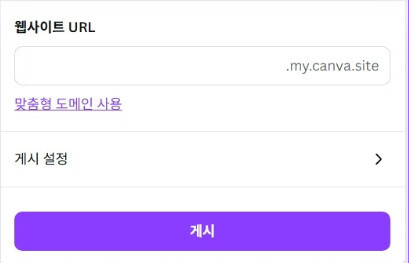
You can use a URL that Canva provides for free, but you can also use a domain that you own or plan to purchase for this purpose.
In this case, you can choose to use the custom domain pictured above.
2) Import my domain
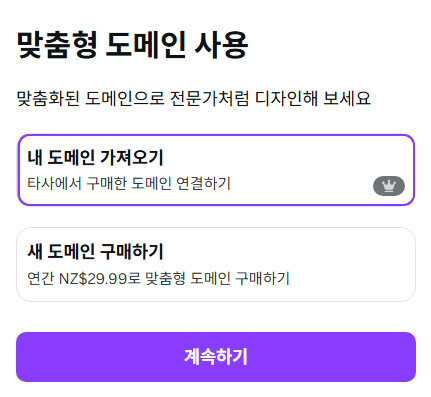
You can import domains that you’ve purchased on other platforms, or you can purchase domains from the canvas.
Importing your own domain isn’t available to everyone, only to those who use Canva pro. You can try Canva Pro for free for 30 days, and if you’re wondering how to do that, check out the post below.
In general, Canva’s NZ$29.99 per year seems a bit on the expensive side.
3) Enter your domain address
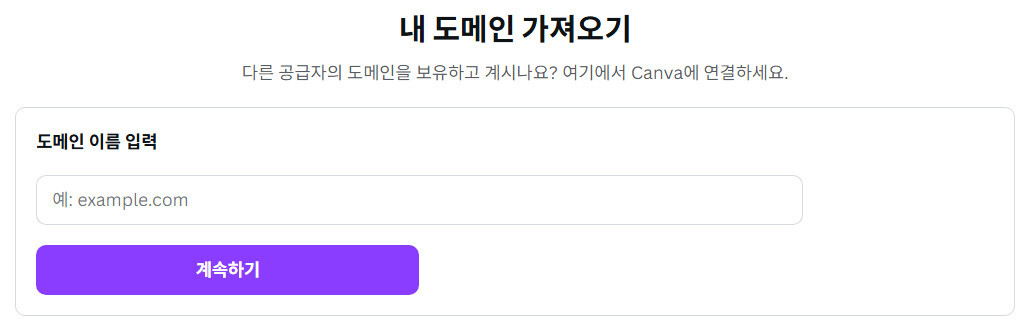
Simply enter your domain address above and click the Continue button.
Sometimes you may get a message saying that the domain is incorrectly formatted, in which case don’t paste what you copied from where you bought the domain, just type it in one by one and you should be good to go.
4) Canva Hosting Server Information
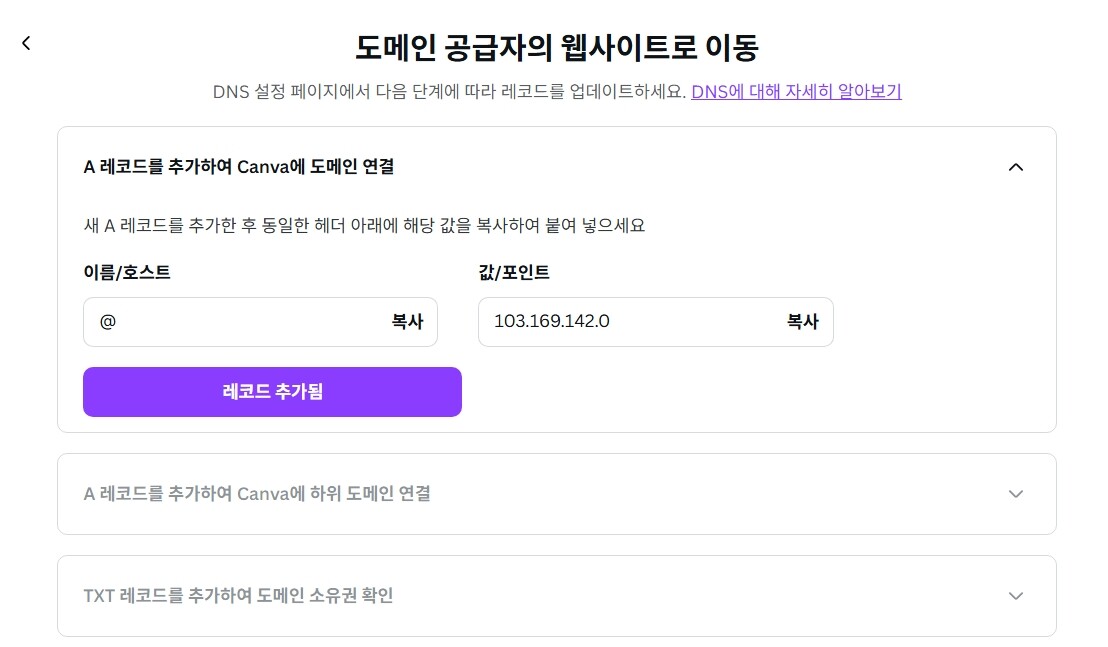
We bought our domain on a different platform, but the website we created is still connected and running on a Canva hosting server.
In this case, we need to set up DNS settings on the website where we purchased our domain so that our domain can connect to the Canva hosting servers.
Otherwise, when people type our domain address into the address bar, they won’t see it because it’s not connected.
The photo above shows the information on the Canva hosting server for that connection.
5) Set up DNS where you purchased your domain
I purchased nowtimein.com from namecheap, I think the price was around USD $11. I’ll leave the purchase process out of the explanation and start from there.
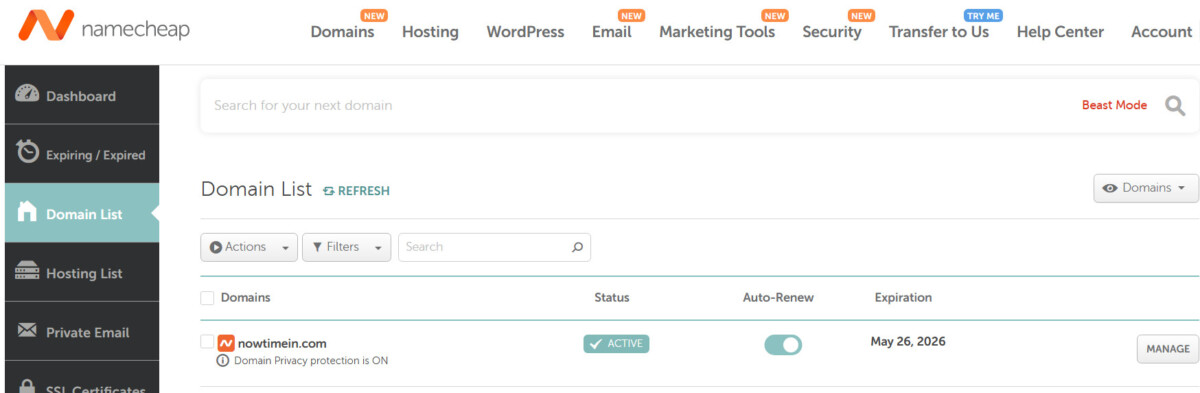
In the list of domains, find the domain you purchased and click the Manage button on the far right.
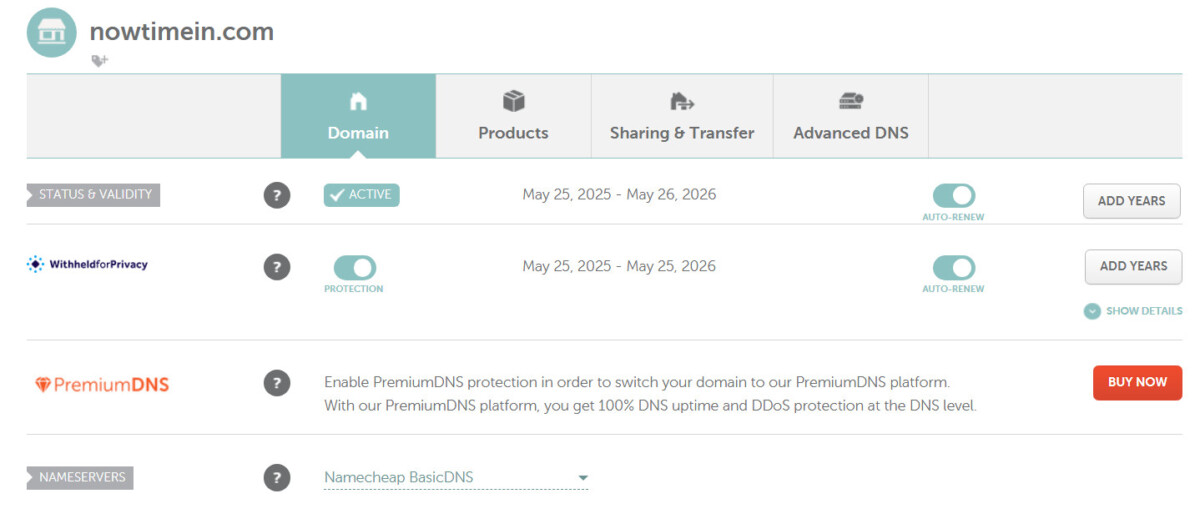
You can’t go wrong here. Next, select the Advanced DNS tab, which is the fourth one.

Once you’re in Advanced DNS, you can find A, CNAME, and TXT in the Add new record menu, enter them one by one, and save.
To talk more about the cname record, think of it as the part that tells Canva that the URL they give you for free is .canva.my.site, but we’re going to use a different nickname (the domain address we purchased).
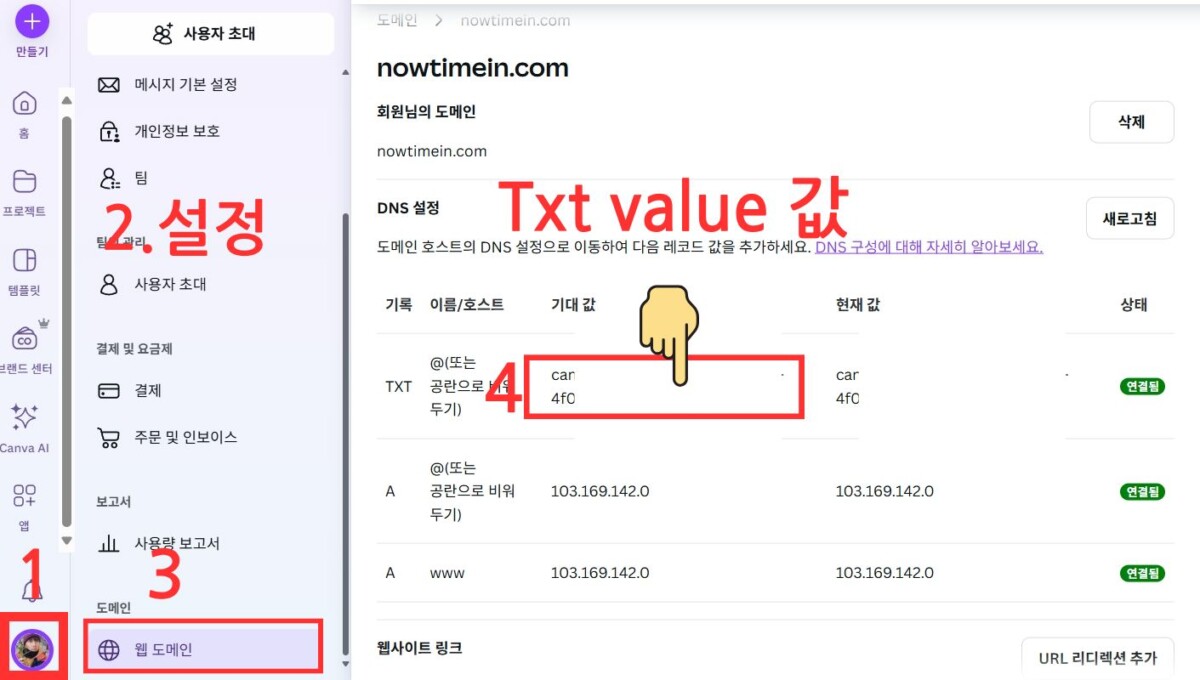
TXT Value starts by hitting the Canva Profile and then Settings menu, and then going to your web domain
You should see something like the right side of the photo above, where you can copy the expectations from the TXT section and paste them into the DNS settings section of your Namecheap domain purchase and save.
Then, after some time, you should see the status as Connected, as shown in the photo above, and you’re done setting up your Canva website domain.
If you enter your domain in the address bar and still can’t connect, try waiting a day or so. That’s what happened to me.
Finalize
Today we’ve talked about setting up a your Canva website domain. I’ve done this for the Namecheap website, but I’m sure other platforms will be similar.
Below is a website made up of domain addresses purchased that way. World Time(nowtimein.com)
I’ve checked and it seems to only work on PC, not mobile, so I’ll see if there’s a way around that and let you know.
I originally wanted to embed AdSense ads on this website, but I can’t see the HTML source, so that’s going to be difficult. I paid for the domain, but I’d like to think of it as a good experience.
By the way, I was amazed by the real Canva coding capabilities, and I encourage you to give it a try.